

How to Connect WooCommerce with Microsoft Dynamics Business Central in 6 Simple Steps
Connect WooCommerce with Microsoft Dynamics Business Central

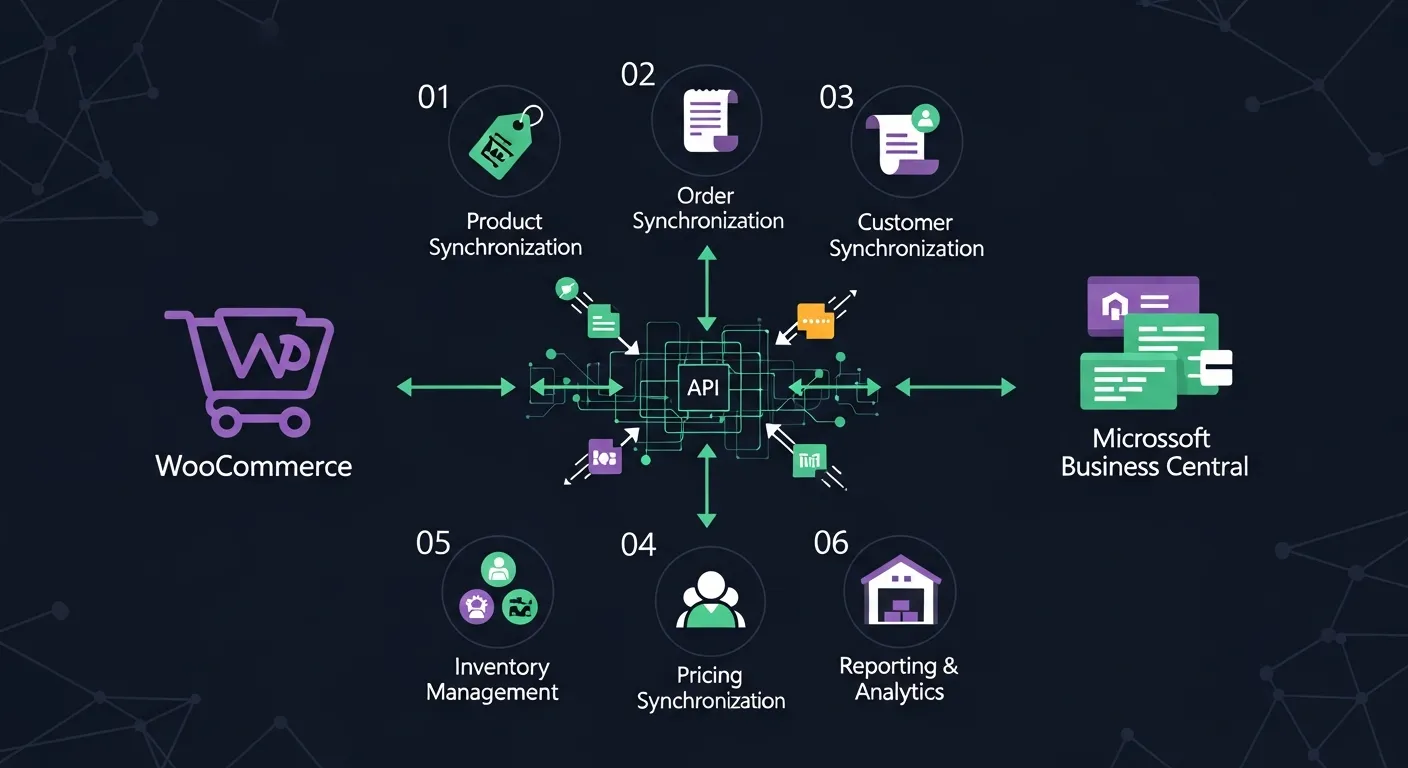
Integrating WooCommerce with Microsoft Dynamics Business Central can transform how you manage your online store and streamline your business operations. By connecting these two powerful platforms, you can automate processes, synchronize data, and enhance overall efficiency. In this article, you'll find a straightforward guide on how to connect WooCommerce with Microsoft Dynamics Business Central in just six simple steps, making the process smooth and hassle-free.
Connecting WooCommerce and Microsoft Dynamics Business Central
Connecting WooCommerce with Microsoft Dynamics Business Central bridges the gap between your online storefront and your back-office operations. This integration ensures that data flows seamlessly between both platforms, eliminating manual processes and reducing the risk of errors. Follow these six simple steps to get started.
1. Prepare Your WooCommerce Store
Before initiating the integration, it's essential to prepare your WooCommerce store to ensure a smooth connection process. Taking the time to get your store ready will prevent potential issues down the line.
- Backup Your Data: Create a complete backup of your WooCommerce store, including your database, product listings, customer information, and order history. This ensures you have a safe restore point in case anything goes wrong during the integration process.
- Update WooCommerce: Make sure your WooCommerce installation is running the latest version. Updates often include bug fixes, security patches, and compatibility improvements that are critical for a successful integration with Microsoft Dynamics Business Central.
2. Choose an Integration Tool
Selecting the right integration tool is a critical step that will determine the reliability and effectiveness of your connection between WooCommerce and Microsoft Dynamics Business Central.
- Select a Reliable Plugin: Look for a WooCommerce Dynamics NAV integration plugin that offers robust features, dependable performance, and comprehensive support. Research user reviews, check compatibility with your WooCommerce version, and evaluate the plugin's track record for handling integrations similar to yours.
- Install the Plugin: Once you've chosen your integration plugin, install it on your WooCommerce store. Navigate to your WordPress dashboard, go to Plugins, click Add New, and either search for the plugin or upload it directly. Activate the plugin after installation to begin the configuration process.
3. Configure the Integration
With the plugin installed, it's time to configure the connection between WooCommerce and Microsoft Dynamics Business Central. This involves generating API keys and establishing the communication channel between the two platforms.
- API Key Generation: In your WooCommerce dashboard, navigate to WooCommerce > Settings > Advanced > REST API. Click Add Key, provide a description for the key, set the permissions level, and click Generate API Key. Store the Consumer Key and Consumer Secret securely — you'll need them to authenticate the connection.
- Connect to Microsoft Dynamics Business Central: Log into your Microsoft Dynamics Business Central account and navigate to the Web Services section. Configure the necessary endpoints and authentication settings to allow the integration plugin to communicate with Microsoft Dynamics Business Central. Enter your API credentials and verify the connection to ensure both platforms can exchange data successfully.
4. Map Data Fields
Data field mapping is a crucial step that determines how information is synchronized between WooCommerce and Microsoft Dynamics Business Central. Proper mapping ensures that data flows accurately and consistently across both platforms.
- Synchronize Data: Configure the integration to synchronize key data types including product information, inventory levels, orders, and customer information. Match product SKUs between WooCommerce and Microsoft Dynamics Business Central to ensure accurate inventory tracking. Map customer data fields such as names, addresses, email addresses, and phone numbers to maintain consistency across both systems.
Take the time to carefully review each data mapping to avoid mismatches that could lead to order processing errors, inventory discrepancies, or customer data inconsistencies. A well-mapped integration forms the foundation for reliable, automated data exchange.
5. Test the Integration
Before going live, thoroughly test the integration to identify and resolve any issues. Testing helps ensure that data flows correctly and that both systems work together as expected.
- Perform Test Transactions: Create test orders in WooCommerce and verify that they appear correctly in Microsoft Dynamics Business Central. Check that product details, quantities, pricing, and customer information are accurately transferred. Test various scenarios including new orders, order updates, refunds, and inventory adjustments.
- Check for Errors: Monitor both platforms for any error messages or data discrepancies during testing. Review log files, check synchronization reports, and validate that all mapped data fields are populating correctly. Address any issues before proceeding to the live environment.
6. Monitor and Optimize
Once the integration is live, ongoing monitoring and optimization are essential to maintain peak performance and ensure the connection continues to meet your business needs.
- Regular Monitoring: Set up regular checks to monitor the synchronization between WooCommerce and Microsoft Dynamics Business Central. Review data accuracy, check for failed synchronization attempts, and ensure that orders, inventory, and customer data are consistently up to date across both platforms.
- Optimize Settings: As your business grows and evolves, revisit your integration settings to optimize performance. Adjust synchronization frequency, refine data mappings, and explore additional features offered by your integration plugin to maximize the value of your WooCommerce and Microsoft Dynamics Business Central connection.
The Importance of Integration
Connecting WooCommerce with Microsoft Dynamics Business Central is more than a technical exercise — it's a strategic decision that can fundamentally improve how your business operates. Understanding the benefits and operational improvements this integration delivers will help you appreciate the value of investing in a seamless connection.
Benefits for Your E-commerce Business
Integrating WooCommerce with Microsoft Dynamics Business Central unlocks a range of benefits that directly impact your bottom line and customer satisfaction.
- Efficient Order Management: Automate order processing from the moment a customer places an order on your WooCommerce store to fulfillment in Microsoft Dynamics Business Central. This eliminates manual order entry, reduces processing time, and minimizes the risk of errors that can lead to delayed shipments or incorrect orders.
- Real-Time Inventory Updates: Keep inventory levels synchronized across both platforms in real time. When a product is sold on WooCommerce, inventory is automatically updated in Microsoft Dynamics Business Central, preventing overselling and ensuring that stock levels are always accurate across all your sales channels.
- Improved Customer Experience: Faster order fulfillment, accurate inventory availability, and consistent customer data across platforms contribute to a superior customer experience. Customers receive their orders more quickly, encounter fewer stock issues, and enjoy a seamless shopping experience.
Beyond these core benefits, the integration provides consolidated reporting and analytics that give you a unified view of your business performance. With data synchronized in real time, you can make informed decisions based on accurate, up-to-date information rather than relying on fragmented data from disconnected systems.
Streamlining Operations with Integration
The integration between WooCommerce and Microsoft Dynamics Business Central consolidates key business processes into a unified workflow, eliminating manual data entry and reducing the operational overhead associated with managing separate systems.
By automating the flow of data between your e-commerce platform and your ERP system, you free up valuable time and resources that can be redirected toward growth initiatives. Manual data entry is not only time-consuming but also error-prone — automation eliminates both issues, leading to increased productivity and greater data accuracy.
The integration also fosters better collaboration across departments. Sales teams can access real-time order data, marketing teams can leverage customer insights for targeted campaigns, finance teams can streamline invoicing and reconciliation, and inventory managers can optimize stock levels based on actual demand. This cross-departmental visibility breaks down silos and enables more coordinated, efficient operations.
Preparing for the Integration Process
Proper preparation is the foundation of a successful integration. Taking the time to prepare both your WooCommerce store and your Microsoft Dynamics Business Central environment will minimize complications and ensure a smoother implementation process.
Necessary Preparations for WooCommerce
Getting your WooCommerce store ready for integration involves several important steps to ensure compatibility and data quality.
- Update WooCommerce: Ensure you are running the latest version of WooCommerce. Updates include important security patches, performance improvements, and compatibility fixes that are essential for a reliable integration.
- Check Plugin and Theme Compatibility: Review your installed plugins and themes to ensure they won't conflict with the integration. Deactivate unnecessary plugins that could interfere with the integration process. Consider switching to a default WordPress theme temporarily to rule out theme-related compatibility issues during setup.
- Optimize Product Data: Ensure your product data is complete, accurate, and well-organized before starting the integration. Complete all product information including descriptions, prices, images, and SKUs. Categorize products correctly to ensure proper mapping with Microsoft Dynamics Business Central. Review inventory levels to confirm accuracy before synchronization begins.
Necessary Preparations for Microsoft Dynamics Business Central
Preparing your Microsoft Dynamics Business Central environment is equally important to ensure a smooth integration with WooCommerce.
- Confirm Subscription: Verify that your Microsoft Dynamics Business Central subscription is active and includes the necessary features and API access required for the integration.
- Check Permissions: Ensure that the user account you'll use for the integration has the appropriate permissions to access and modify data in Microsoft Dynamics Business Central, including read and write access to relevant tables and web services.
- Familiarize Yourself with Microsoft Dynamics Business Central: If you're new to Microsoft Dynamics Business Central, take time to understand its interface, navigation, and key features. Familiarity with the platform will help you configure the integration more effectively and troubleshoot any issues that arise.
- Gather Required Information: Collect all the information you'll need for the integration, including API credentials, access tokens, and endpoint URLs. Having this information ready before you begin will streamline the configuration process.
- Create a Data Backup: Just as with WooCommerce, create a complete backup of your Microsoft Dynamics Business Central data before starting the integration. This provides a safety net in case you need to restore your data to its pre-integration state.
Troubleshooting Common Issues
Even with careful preparation, integration issues can arise. Knowing how to identify and resolve common problems will help you maintain a stable, reliable connection between WooCommerce and Microsoft Dynamics Business Central.
Addressing WooCommerce Integration Problems
If you encounter issues on the WooCommerce side of the integration, follow these troubleshooting steps to identify and resolve the problem.
- Update the Integration Plugin: Ensure you have the latest version of the integration plugin installed. Plugin updates often include bug fixes and compatibility improvements that can resolve existing issues.
- Check for Plugin Conflicts: Deactivate other plugins one by one to determine if a conflict is causing the problem. Some plugins may interfere with the integration's functionality or API communication.
- Review Recent Updates: If the issue started after a recent WordPress, WooCommerce, or plugin update, the update may have introduced a compatibility problem. Check the plugin's changelog and support forums for known issues related to recent updates.
- Contact Plugin Support: If you're unable to resolve the issue on your own, reach out to the integration plugin's support team. Provide detailed information about the error, including error messages, log files, and steps to reproduce the problem.
Solving Microsoft Dynamics Business Central Integration Issues
When integration problems originate from the Microsoft Dynamics Business Central side, these steps will help you diagnose and fix the issue.
- Double-Check API Credentials: Verify that your API credentials and access tokens are accurate and have not expired. Incorrect or outdated credentials are one of the most common causes of integration failures.
- Verify Data Consistency: Ensure that the data in Microsoft Dynamics Business Central matches the expected format and structure. Inconsistent data types, missing required fields, or formatting discrepancies can cause synchronization errors.
- Review Error Logs: Check Microsoft Dynamics Business Central's error logs and system notifications for specific error messages related to the integration. These logs often provide detailed information about what went wrong and where the issue occurred.
- Consult Microsoft Dynamics Business Central Support: If the problem persists, contact the Microsoft Dynamics Business Central support team for expert assistance. Provide them with relevant error logs, configuration details, and a description of the issue to expedite the resolution process.
Ensure Continuous Improvement with Regular Monitoring
Connecting WooCommerce with Microsoft Dynamics Business Central is a powerful step toward enhancing your e-commerce operations. By automating order management, synchronizing inventory in real time, and maintaining consistent customer data across both platforms, you create a more efficient and reliable business infrastructure.
The key to long-term success lies in continuous monitoring and optimization. Regularly review your integration performance, address any issues promptly, and refine your settings as your business evolves. By staying proactive and committed to improvement, you'll maximize the value of your WooCommerce and Microsoft Dynamics Business Central connection, improve customer satisfaction, and position your business for sustained growth.